


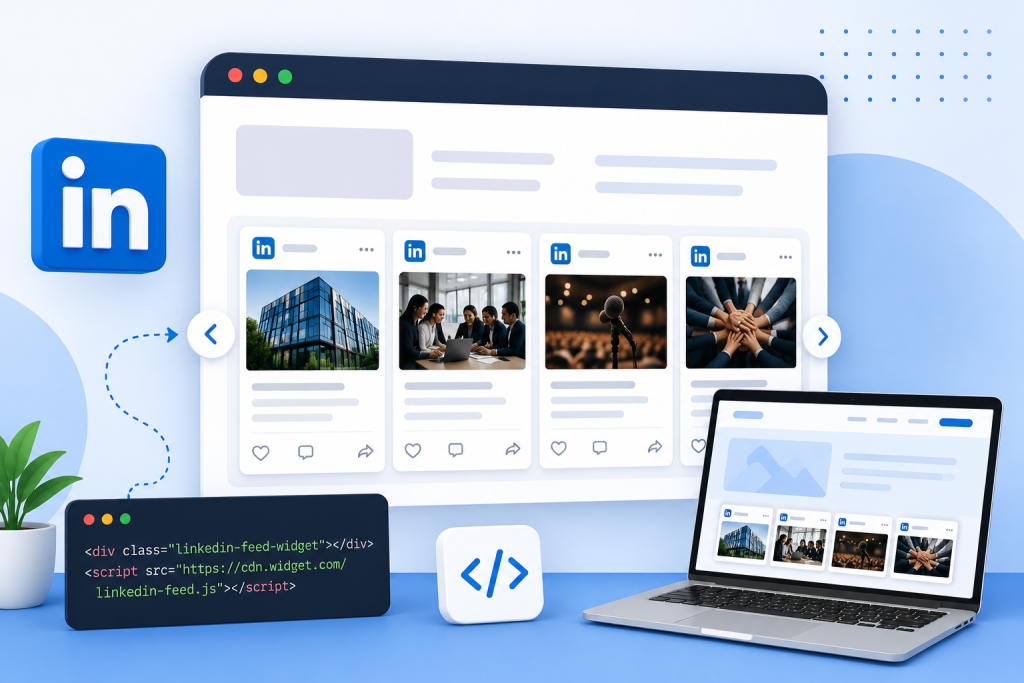
Your website is often the first place potential customers visit to learn about your brand. But static websites can quickly feel outdated. One of the easiest ways to keep your site fresh, engaging, and socially active is by embedding a LinkedIn feed widget.
A LinkedIn feed widget allows you to display real-time updates from your LinkedIn company page directly on your website. Whether it’s company announcements, industry insights, employee achievements, thought leadership content, or brand updates, showcasing your LinkedIn feed helps build credibility and trust with visitors.
For businesses, especially B2B brands, SaaS companies, agencies, and professional service providers, LinkedIn is one of the most valuable social platforms for establishing authority and connecting with a professional audience. By adding a LinkedIn feed to your website, you can increase engagement, improve social proof, and encourage more visitors to follow your brand.
Methods To Embed the LinkedIn Feed Widget On Website
In this guide, we’ll walk you through how to embed a LinkedIn feed widget on a website, different methods to add it, and the best tools you can use to display a fully customizable LinkedIn profile feed without any coding hassle.
1. Use a LinkedIn Feed Widget Tool (Most Recommended)
The easiest and most popular method is using a LinkedIn feed widget tool. Since LinkedIn does not offer a native feature to display an entire company feed on websites, third-party tools make the process simple and customizable.
With a LinkedIn widget tool, you can:
- Display a live LinkedIn company page feed
- Automatically update posts in real time
- Customize layouts and themes
- Add call-to-action buttons
- Moderate and filter content
This method works best for:
- Business websites
- SaaS brands
- Agencies
- B2B companies
- Professional portfolios
Popular LinkedIn feed widget tools include:
- Taggbox
- Tagembed
- Flockler
- SociableKIT
How it works:
- Choose a LinkedIn widget platform.
- Connect your LinkedIn company page.
- Customize the widget layout.
- Generate the embed code.
- Paste the code into your website.
Best for: Users who want an automated, professional-looking LinkedIn feed without coding.
2. Embed Individual LinkedIn Posts
If you only want to showcase a few high-performing posts rather than a complete feed, LinkedIn allows you to embed individual public posts.
This method is useful when:
- Highlighting customer success stories
- Showcasing announcements
- Displaying thought leadership posts
- Featuring viral or high-engagement content
Steps to embed a LinkedIn profile post:
- Open the LinkedIn post you want to embed.
- Click the three-dot menu (•••) on the post.
- Select Embed this post (if available).
- Copy the embed code.
- Paste it into your website HTML.
Best for: Blogs, case studies, landing pages, and announcement sections.
3. Use Website Plugins or Apps
If your website runs on CMS platforms like WordPress, Shopify, Wix, or Squarespace, many plugins and apps allow quick LinkedIn feed integration. You simply install the plugin and paste your LinkedIn source URL.
Popular platform-specific methods:
WordPress
- Use a social feed plugin
- Add the LinkedIn widget using shortcode or HTML block
Shopify
- Use app embeds or custom liquid sections
Wix/Squarespace
- Add an embed block and paste the widget code
Best for: Non-technical users who want a no-code setup.
4. Add LinkedIn Feed Using Custom HTML Embed Code
For developers or users comfortable editing website code, you can manually insert the widget script into your website.
Most LinkedIn feed aggregators provide a JavaScript embed code that can be added directly to the website.
Example:


This gives greater flexibility in placement and styling.
Best for: Developers and custom-built websites.
5. Embed LinkedIn Feed Widget Through API Integration
For advanced users and enterprises, LinkedIn APIs can be used to pull content dynamically and create a fully customized feed experience.
Using APIs, businesses can:
- Fetch company page posts
- Display curated LinkedIn content
- Customize UI completely
- Integrate with internal systems
However, this method requires:
- Development resources
- LinkedIn developer access
- API setup and maintenance
Best for: Enterprise websites and custom web applications.
Which Method Is Best for Embedding a LinkedIn Feed Widget on a Website?
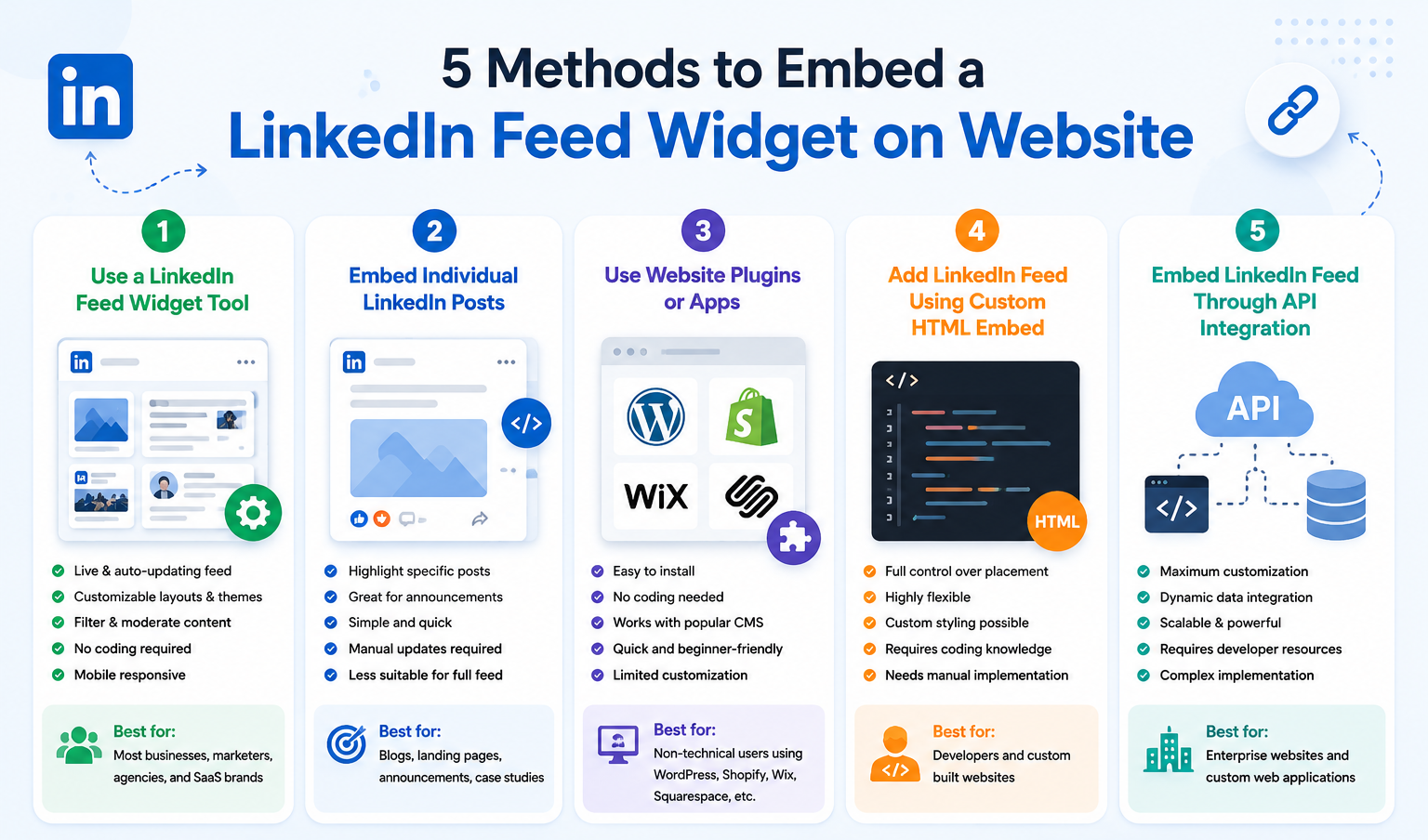

If you want the easiest, fastest, and most scalable option, a LinkedIn feed widget tool is usually the best method. It requires minimal setup, updates automatically, and delivers a polished, professional look.
If your focus is on showcasing specific achievements or announcements, embedding individual posts works well. Meanwhile, developers and enterprises may benefit more from custom HTML or API integrations for advanced flexibility.
Ultimately, the best method depends on how much control, automation, and customization you want for your LinkedIn feed on your website.
Conclusion
Embedding a LinkedIn feed widget on your website is one of the smartest ways to keep your site dynamic, professional, and engaging. Instead of relying on static content, a live LinkedIn feed helps you showcase real-time updates, company achievements, thought leadership, and brand activity directly to your website visitors.
Whether you choose a third-party LinkedIn feed widget, embed individual LinkedIn posts, use plugins, custom HTML, or API integration, each method offers unique benefits based on your website’s needs and technical expertise. For most businesses, using a LinkedIn feed widget tool is the easiest and most effective way to display a visually appealing, automatically updated feed without coding.
By adding a LinkedIn feed to your website, you not only strengthen social proof but also build trust, improve engagement, and encourage visitors to connect with your brand on LinkedIn. So, choose the method that works best for your website and start turning your LinkedIn presence into a powerful website engagement tool today.